> ## Documentation Index
> Fetch the complete documentation index at: https://rive-update-scripting-docs-885.mintlify.site/llms.txt
> Use this file to discover all available pages before exploring further.
# Edit Vertices
> No matter the type of vector you create, you can edit the vertices by changing their position or handles in both design and animate mode.
export const YouTube = ({id, timestamp}) => {
const videoSrc = timestamp ? `https://www.youtube.com/embed/${id}?start=${timestamp}` : `https://www.youtube.com/embed/${id}`;
return ;
};
## Edit vertices mode
To enter Edit Vertices mode, either select the shape and hit enter twice or select a path and hit enter once.
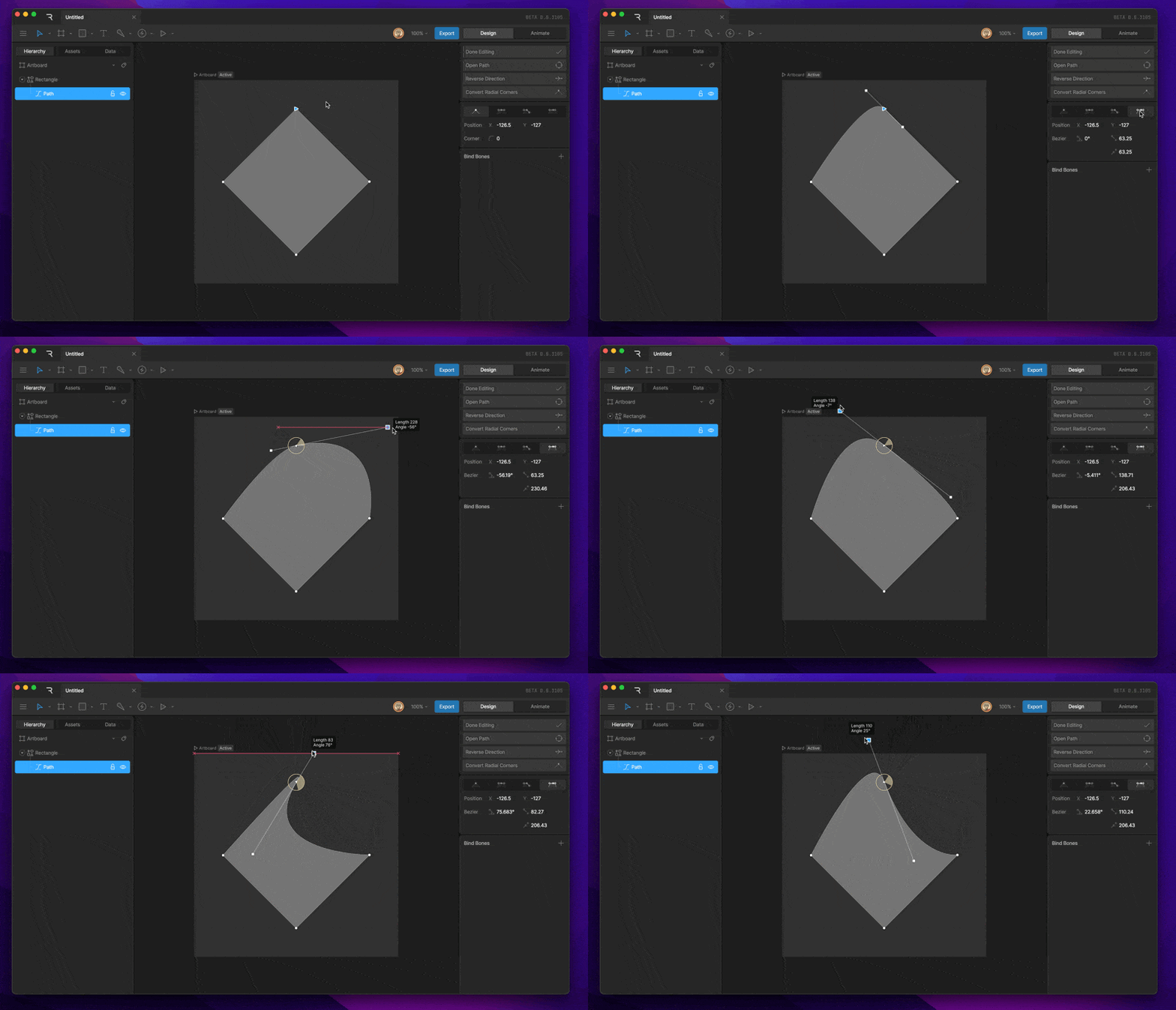
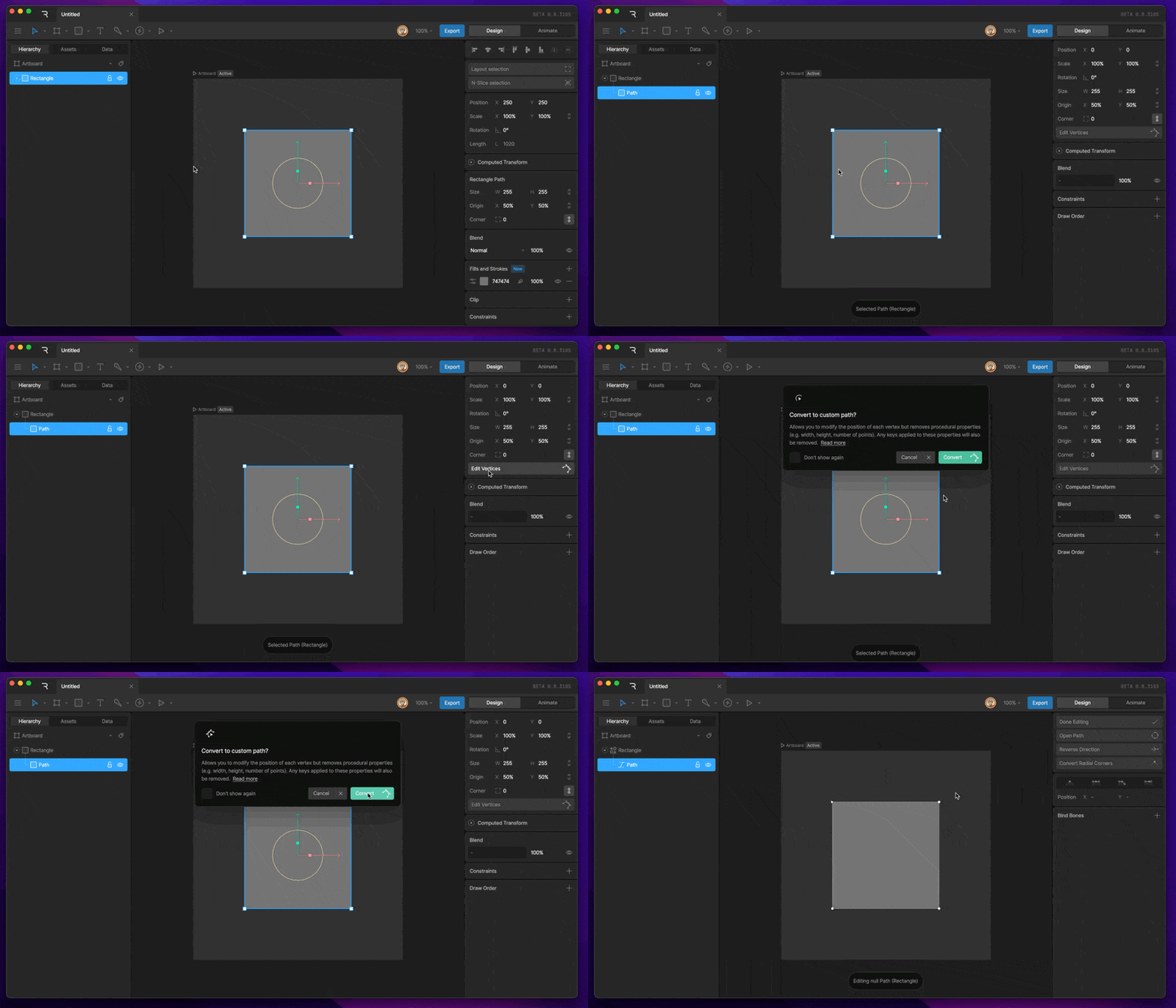 After activating Edit Vertices mode, you can select any vertex, reposition it, and edit the bezier handles.
Use [Deep Select](/editor/interface-overview/selection-and-navigation#deep-select) to select a specific path inside nested groups on the stage.
### Path options
Each path in Edit Vertices mode has a set of path options at the top of the Inspector.
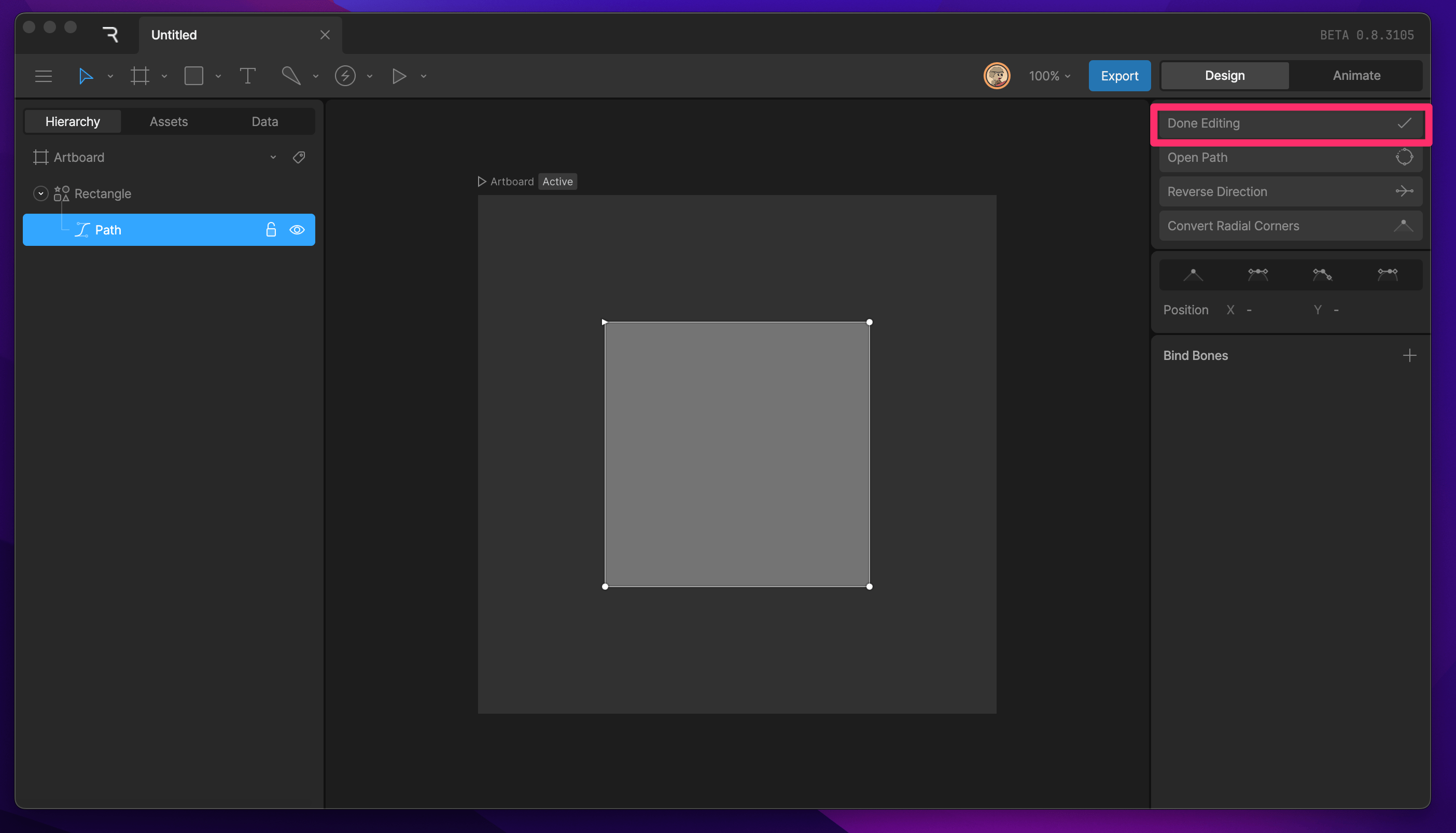
**Done Editing Button**
The Done Editing button can be used to exit Edit Vertices Mode.
After activating Edit Vertices mode, you can select any vertex, reposition it, and edit the bezier handles.
Use [Deep Select](/editor/interface-overview/selection-and-navigation#deep-select) to select a specific path inside nested groups on the stage.
### Path options
Each path in Edit Vertices mode has a set of path options at the top of the Inspector.
**Done Editing Button**
The Done Editing button can be used to exit Edit Vertices Mode.
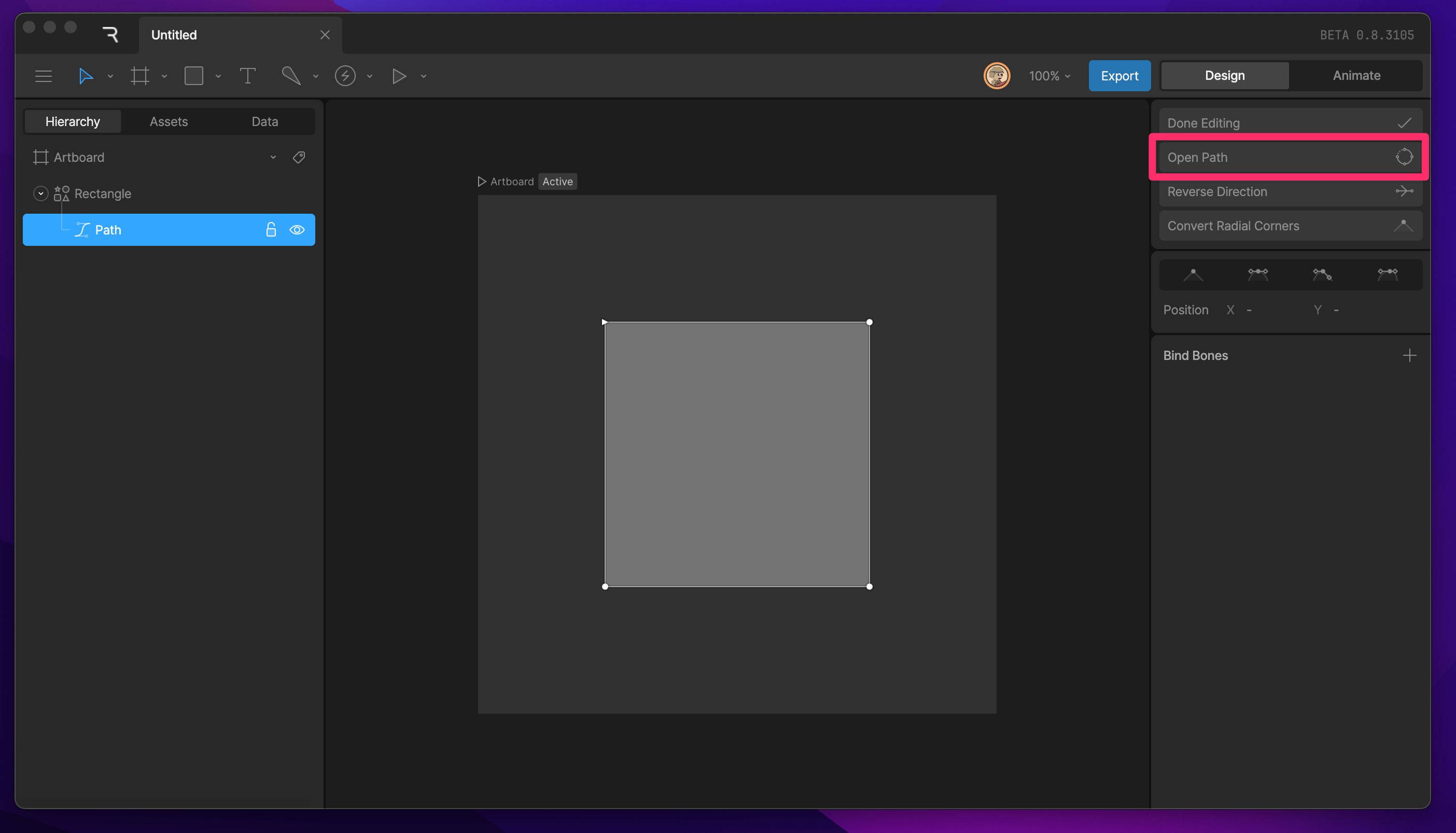
 **Open Path**
The Open Path button will disconnect the last vertex from the first vertex.
**Open Path**
The Open Path button will disconnect the last vertex from the first vertex.
 **Reverse Direction**
The Reverse Direction button can be used to reverse the direction of the path. Depending on the Fill-Rule, this can eliminate holes in our shape by changing the mathematical value of the selected path.
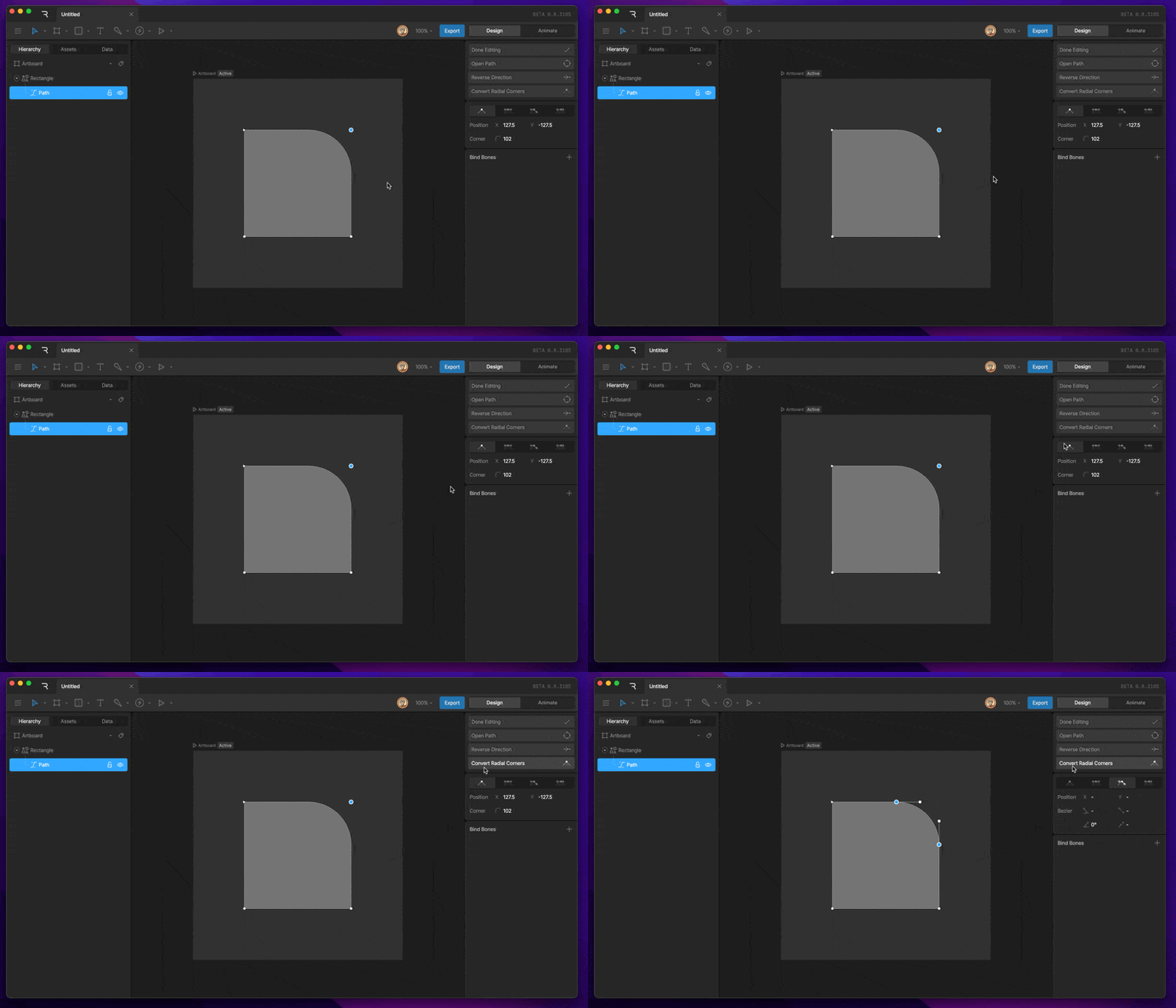
**Convert Radial Corners**
Straight vertices with a corner radius will deform when the scale transform is applied to the shape or path layer. You can convert radial corners from a procedural property to a defined set of vertices. This process will eliminate deformation of the corner.
**Reverse Direction**
The Reverse Direction button can be used to reverse the direction of the path. Depending on the Fill-Rule, this can eliminate holes in our shape by changing the mathematical value of the selected path.
**Convert Radial Corners**
Straight vertices with a corner radius will deform when the scale transform is applied to the shape or path layer. You can convert radial corners from a procedural property to a defined set of vertices. This process will eliminate deformation of the corner.
 ## Bezier handles
**Straight**
The default handles are set to straight, which creates straight edges between vertices.
## Bezier handles
**Straight**
The default handles are set to straight, which creates straight edges between vertices.
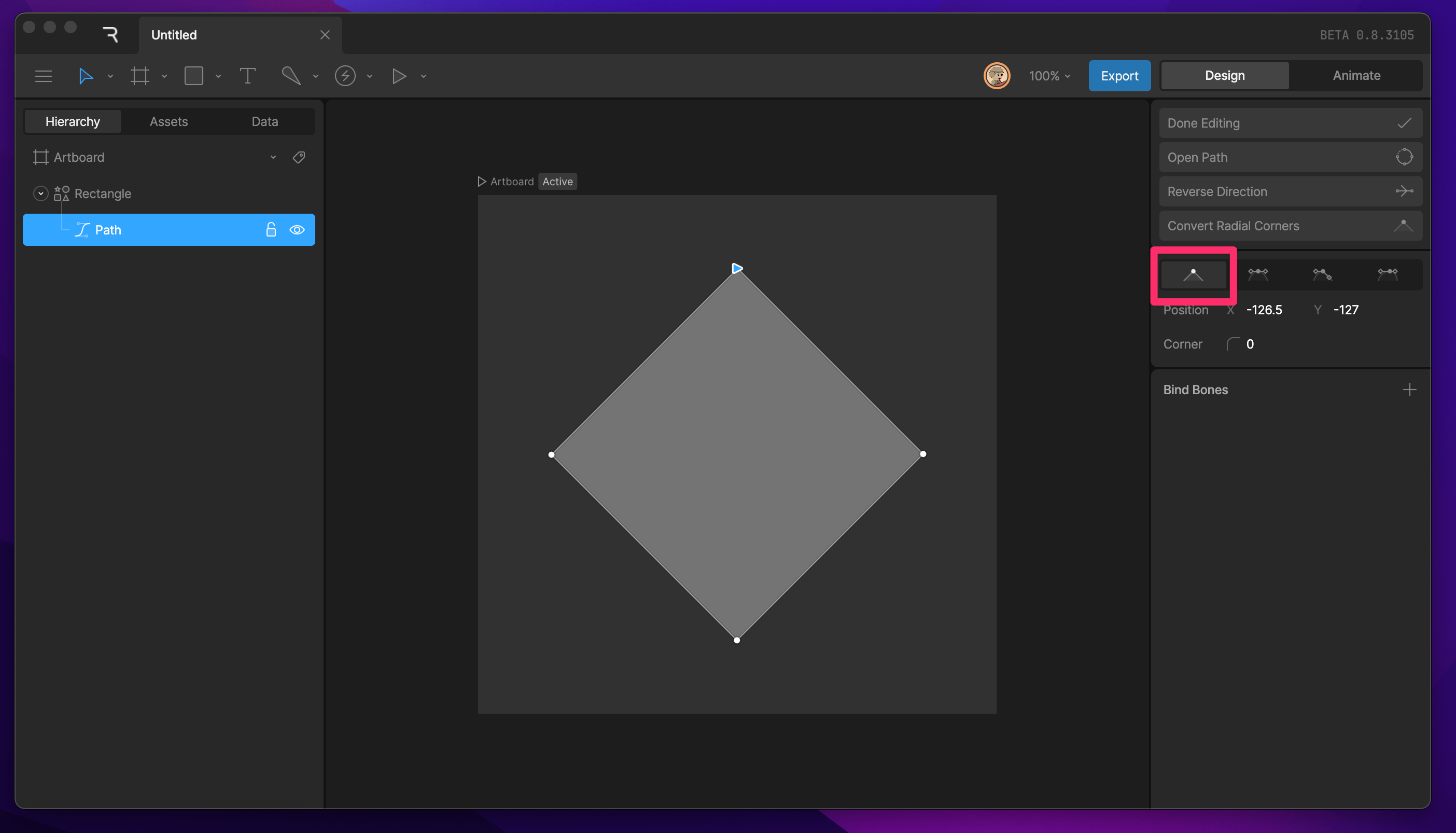 **Corner Radius**
The Corner Radius property allows you to round straight corners. This property only appears on vertices that are set to straight.
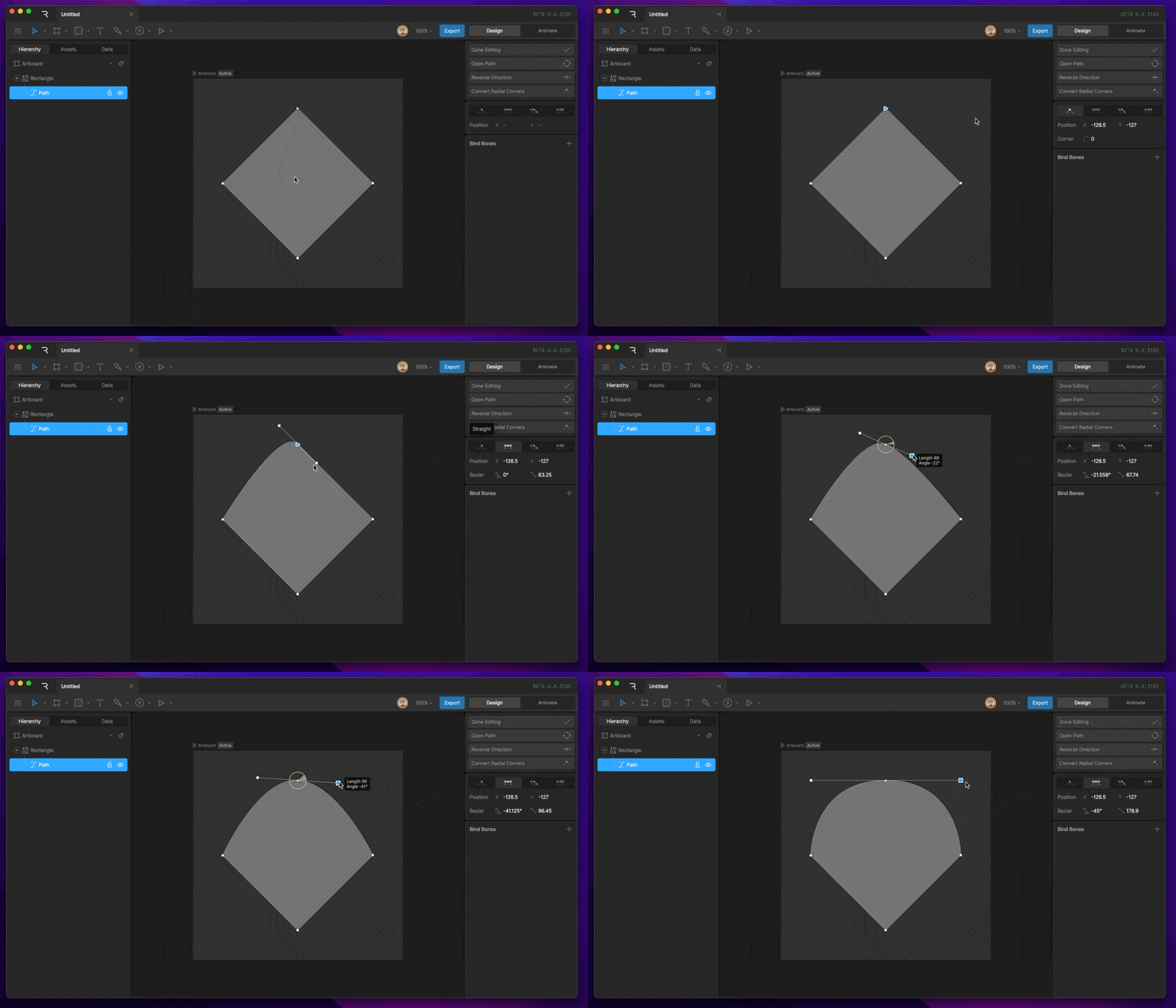
**Mirrored**
Mirrored is the default handle when you create a vertex by clicking and dragging. These handles always keep the same rotation and length.
**Corner Radius**
The Corner Radius property allows you to round straight corners. This property only appears on vertices that are set to straight.
**Mirrored**
Mirrored is the default handle when you create a vertex by clicking and dragging. These handles always keep the same rotation and length.
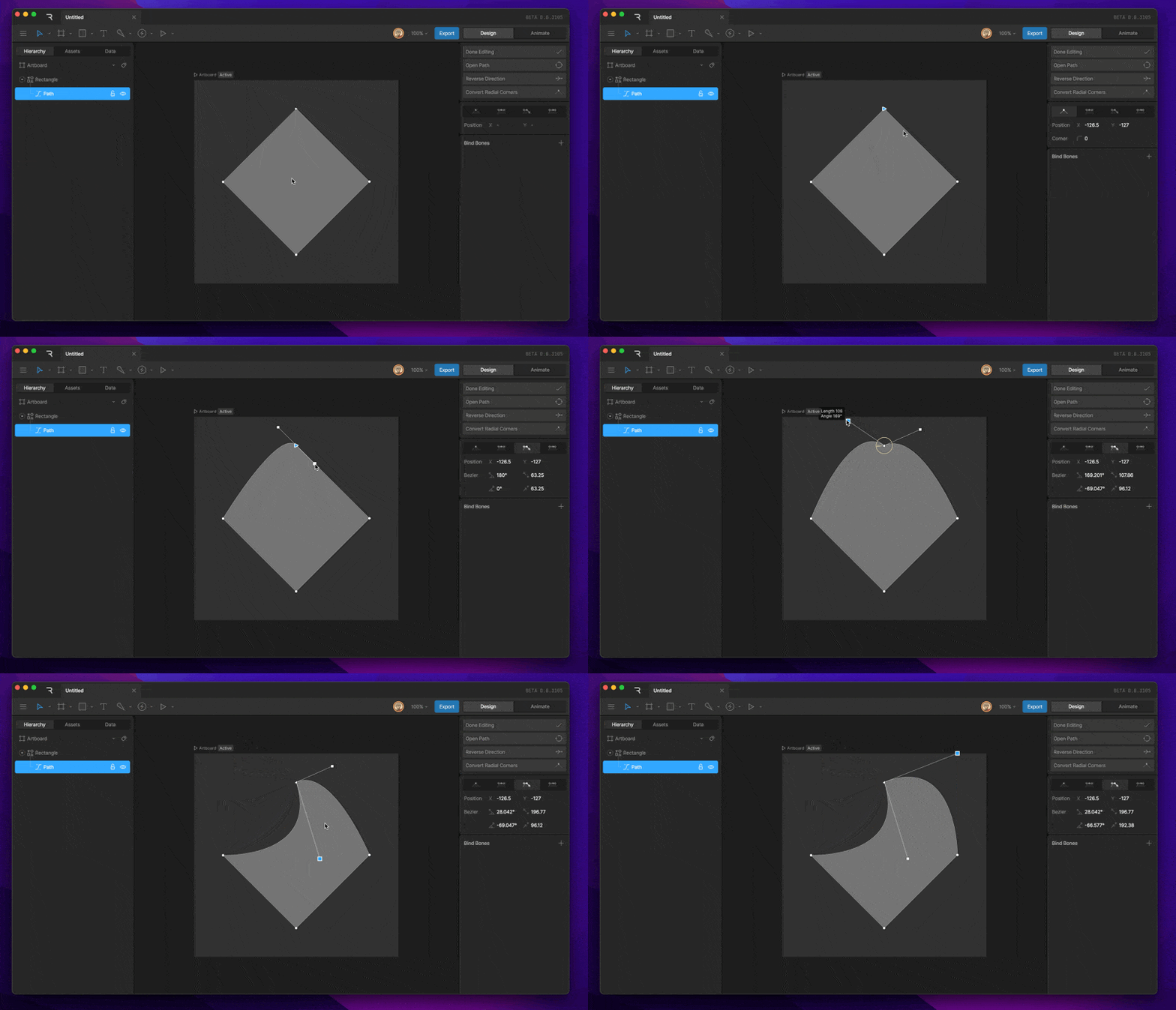
 **Detached**
Detached handles allow each handle to have its own rotation and length.
**Detached**
Detached handles allow each handle to have its own rotation and length.
 **Asymmetric**
Asymmetric handles share the same rotation but can have lengths independently of each other.
**Asymmetric**
Asymmetric handles share the same rotation but can have lengths independently of each other.